Sophos Cyberoam Firewall
Configure the Syslog Server in Sophos XG Firewall
You can configure a syslog server in Sophos Firewall by following the instructions below:
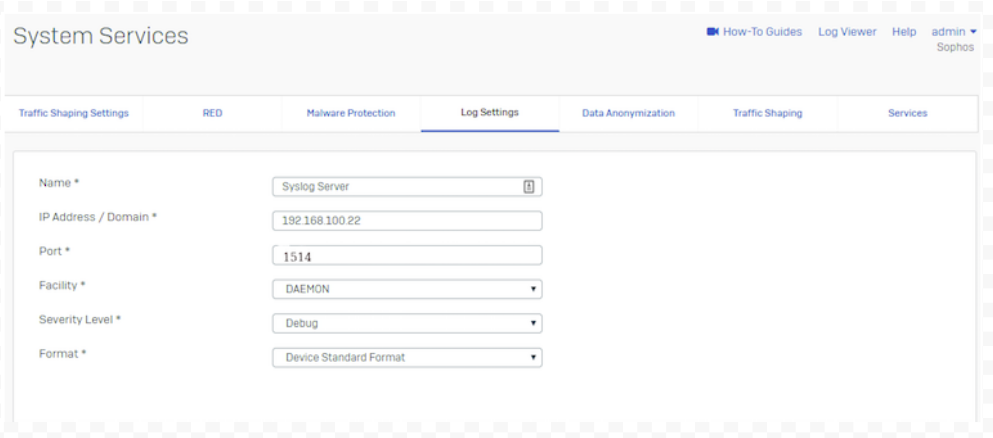
- Navigate to System Services > Log Settings and click Add to configure a syslog server.
- Enter a Name for the syslog server.
- Enter the IP Address of the syslog server. Messages from the device will be sent to this IP.
- Enter a Port number that the device will use to communicate with the syslog server.
✅ Firewall Analyzer uses port
1514as the default syslog server port.
-
Select the Facility from the available options. For example, the default value is
DAEMON.- Facility helps the syslog server identify the log source. This is useful for distinguishing log messages from multiple devices.
Available options:
DAEMON(Default): Services running on the device as daemonsKERNEL: Kernel-level logsLOCAL0toLOCAL7: Custom log levelsUSER: Logs related to users connected to the server
-
Select the Severity Level from the available options. Severity determines the importance of logs captured.
- The firewall logs all messages with severity equal to or higher than the selected level.
Available options:
Emergency(Default): System is unusableAlert: Immediate action requiredCritical: Critical issueError: General errorsWarning: Warnings of possible issuesNotification: Normal but significant eventsInformation: Informational messagesDebug: All debug-level messages
-
Select the Format. Currently, Sophos supports only its own standard log format.
-
Click Save to apply the configuration.
Once you have added the syslog server:
- Navigate to System > System Services > Log Settings
- Enable the logs that you want to forward to the syslog server under the Log Settings section.
Enable Traffic Logging
1. Enable Firewall Traffic Logs
-
Navigate to Firewall > Edit Firewall Rule.
-
In the Log Traffic section, enable logging of traffic.
-
This ensures all traffic passing through the firewall rule is recorded and visible in the Log Viewer.
-
✅ Recommended: Enable logging for all firewall rules.
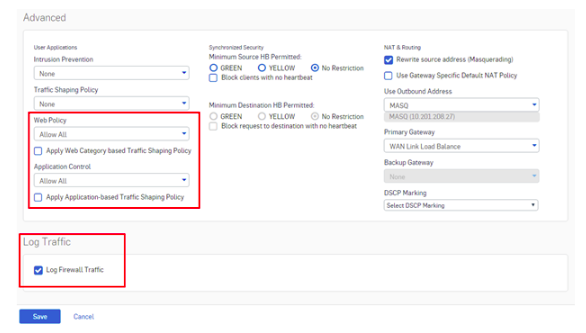
2. Apply Security Policies
Ensure that a valid security policy is applied:
- Choose from
Allow All,Default Policies, or a custom security policy. - If set to
None, the firewall may not generate logs.
3. Enable Local Logging
- Navigate to Configure > System Services > Log Settings
- Enable the checkbox for Log Type (System) to start local logging.
- ✅ Recommended: Enable logging for all modules for complete visibility.