Microsoft Intune
The Microsoft Intune connector gathers data about devices from Microsoft Intune. By facilitating the efficient collection and management of device-related information, it aids organizations in meeting regulatory requirements and ensuring adherence to compliance standards. This integration enhances not only operational efficiency but also contributes significantly to maintaining a secure and compliant IT environment.
Pre-requisites
-
Microsoft account to access the Azure portal and register an application to use the Microsoft Graph API.
-
Application (client) ID
-
Client Secret
-
Directory (tenant) ID
Steps to derive prerequisites:
-
Sign in to the Microsoft Entra admin center.
-
If you have access to multiple tenants, use the Directories + subscriptions filter in the top menu to switch to the tenant in which you want to register the application.
-
Click App registrations
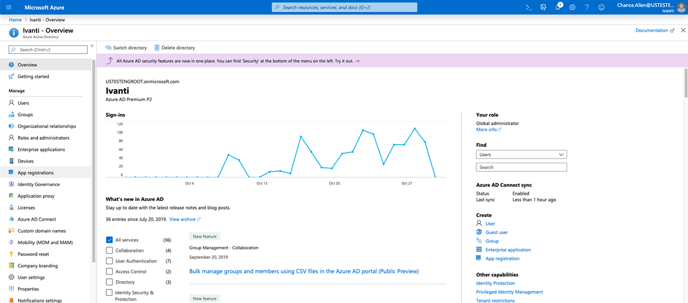
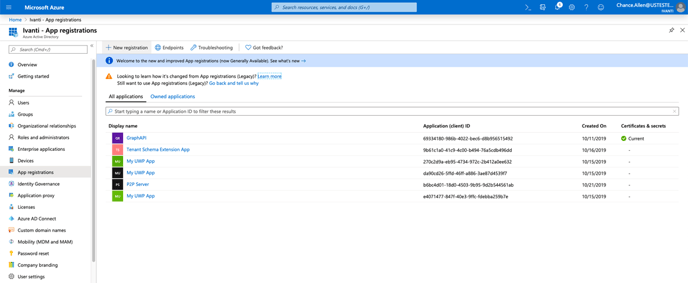
4. Create new registration
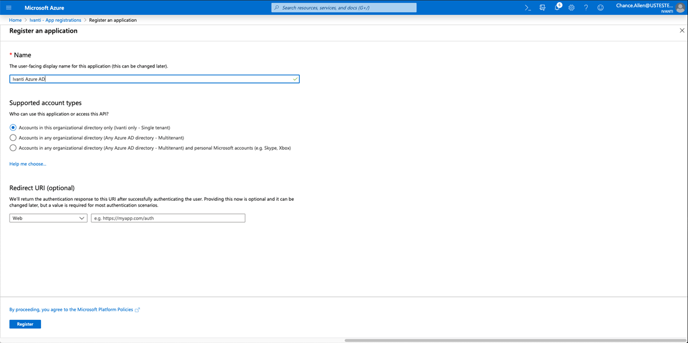
5. Enter name, select appropriate account type and click Register
6. Click API permissions
7. Click +Add a permission
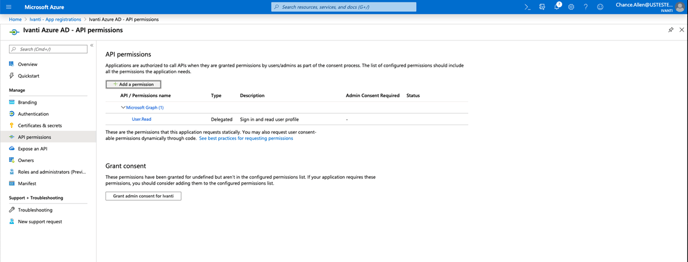
8. Select Microsoft Graph
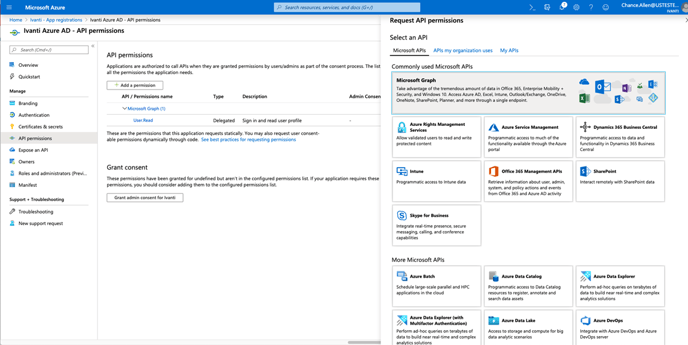
9. In the Application Permissions and Delegated Permissions:-
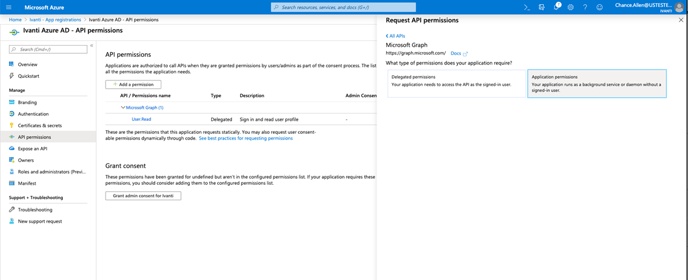
- Select the following permissions under DeviceManagementApps - DeviceManagementManagedDevices.Read.All, DeviceManagementManagedDevices.ReadWrite.All and click Add permissions.

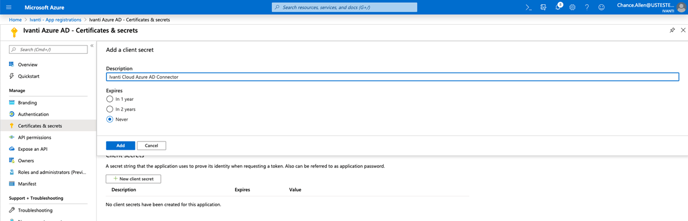
10. Click Certificates & secrets in the menu on the left and Click +New client secret
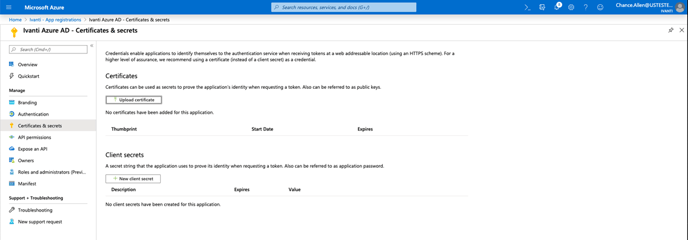
11. Enter description and Click Add
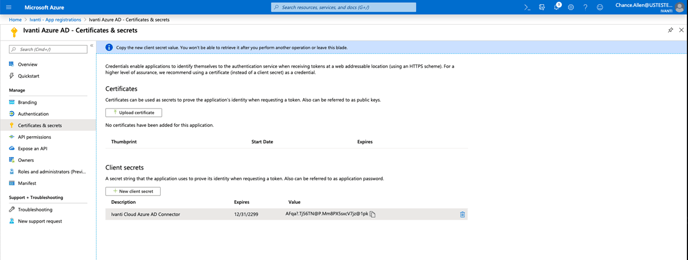
12. Copy your newly created secret and Make a note of it
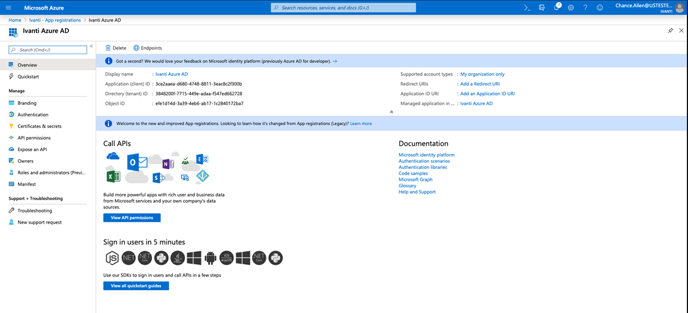
13. Click Overview in the menu on the left
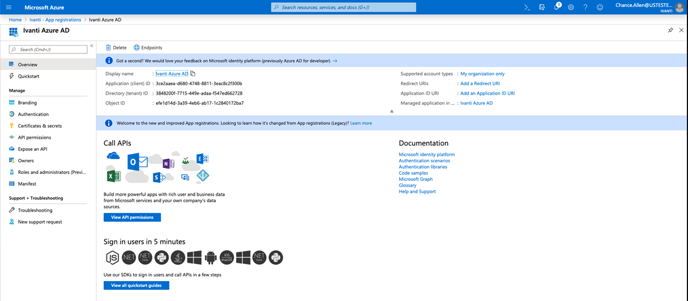
14. Copy your newly created Application (client) ID and Directory (tenant) ID and Make a note of it.
Configurations
The following are the configurations to forward Microsoft Intune Connector logs to DNIF.

| Field Name | Description |
|---|---|
| Connector Name | Enter a name for the connector |
| Client ID | Enter the Application (client) ID |
| Client Secret | Enter the Client Secret |
| Tenant ID | Enter the Directory (tenant) ID |
-
Click Save after entering all the required details and click Test Connection, to test the configuration.
-
A Connection successful message will be displayed on screen along with the time stamp.
-
If the connection is not successful an error message will be displayed. Refer Troubleshooting Connector Validations for more details on the error message.