Search and Filter Cases
Searching and filtering cases allow users to quickly locate and focus on specific cases by applying relevant filters
Search Cases by name
-
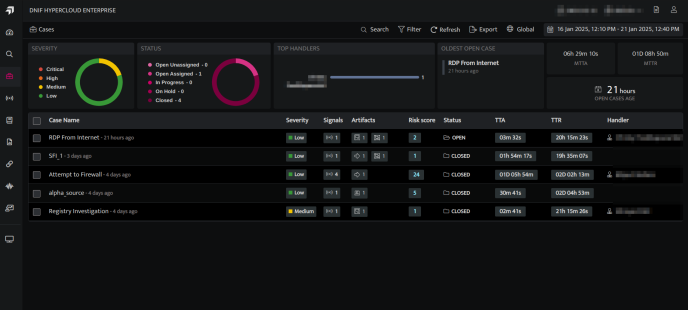
On the left navigation bar, Click the Cases icon to view the following page.
-
Users can search for existing Cases by the Case name using the Search.

Filter Cases
-
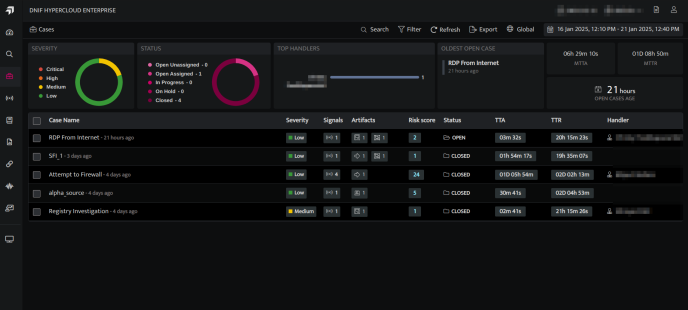
On the left navigation bar, Click the Cases icon to view the following page.
-
Click the Filters icon to apply Filters.
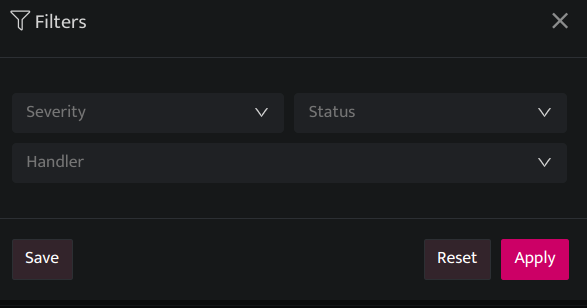
| Fields | Description |
|---|---|
| Severity | Users can filter the Case by Severity(low, medium, high, critical) |
| Status | Users can filter the Case by Status(Open, In-Progress, On-Hold and Close) |
| Handler | Users can filter the Case by the Handler name. |
| Apply | Click to apply the filter |
| Reset | Click to reset the filter |
| Save | Click to save the filter |
-
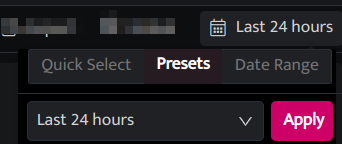
Click the Date Time picker to filter cases by duration.
-
Users can select the following time ranges as per their requirements.
-
Quick Select: In this category, you can enter any number and set to retrieve the data for that many minutes/hours or days.
-
Presets: Lists all the available preset options.
-
Last 5 minutes: Displays signals raised during the last 5 minutes.
-
Last 30 minutes: Displays signals raised during the last 30 minutes.
-
Last 1 hour: Displays signals raised during the last 1 hour.
-
Last 24 hours (default value): Displays signals raised during the last 24 hours.
-
Last 7 days: Displays signals raised during the last 7 days.
-
Last 30 days: Displays signals raised during the last 30 days.
-
Today: Displays signals raised today.
-
Yesterday: Displays signals raised yesterday.
-
Previous Month: Displays signals raised in the previous month.
-
Date Range: Select a custom date and time range from the calendar.
-
Apply: Click to apply filter.
-
-