Create a Case
Creating a new case involves adding one or more signals into a case folder. Each case is focused on investigating a particular type of incident. By organizing cases in this manner, the security team can prioritize high-risk incidents, streamline investigations, and accelerate response times.
How to create a new case?
-
New cases can be created from the signals listing page by selecting one or more signals.
-
Click the Signals icon on the left navigation bar of the Home screen, the following screen will be displayed.
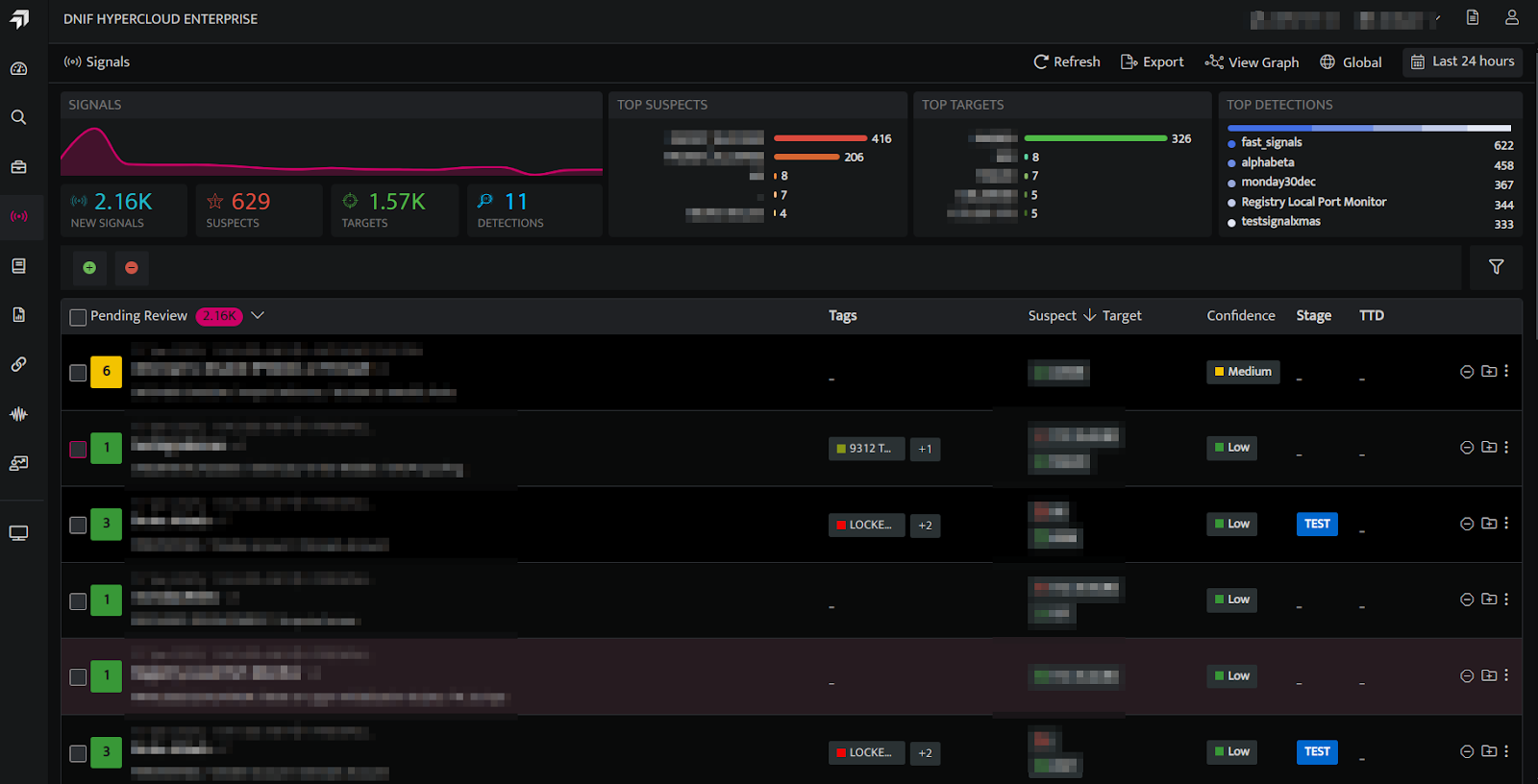
Creating a case with one signal
-
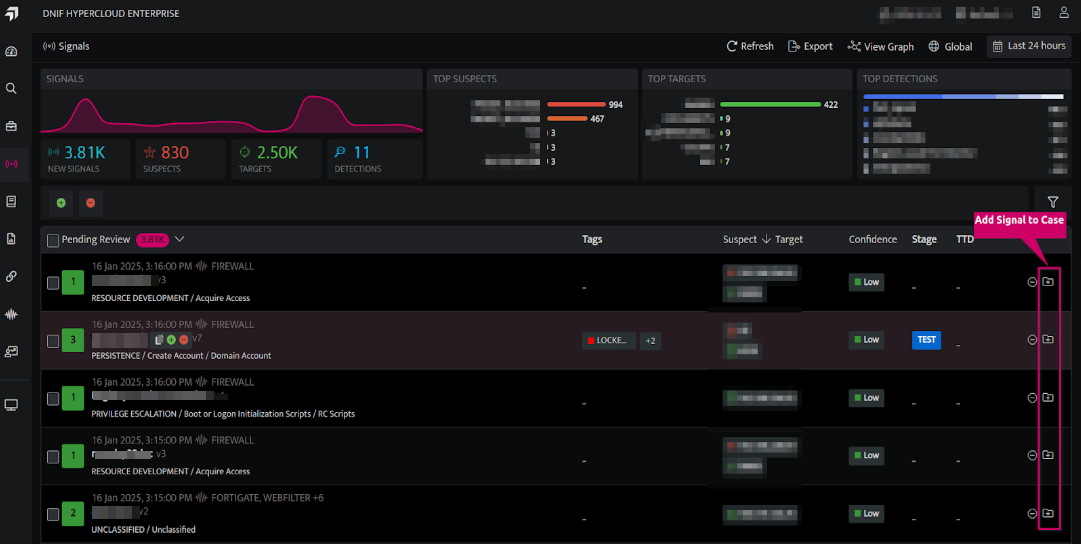
Click the icon next to the Signal for which a new case needs to be created.
-
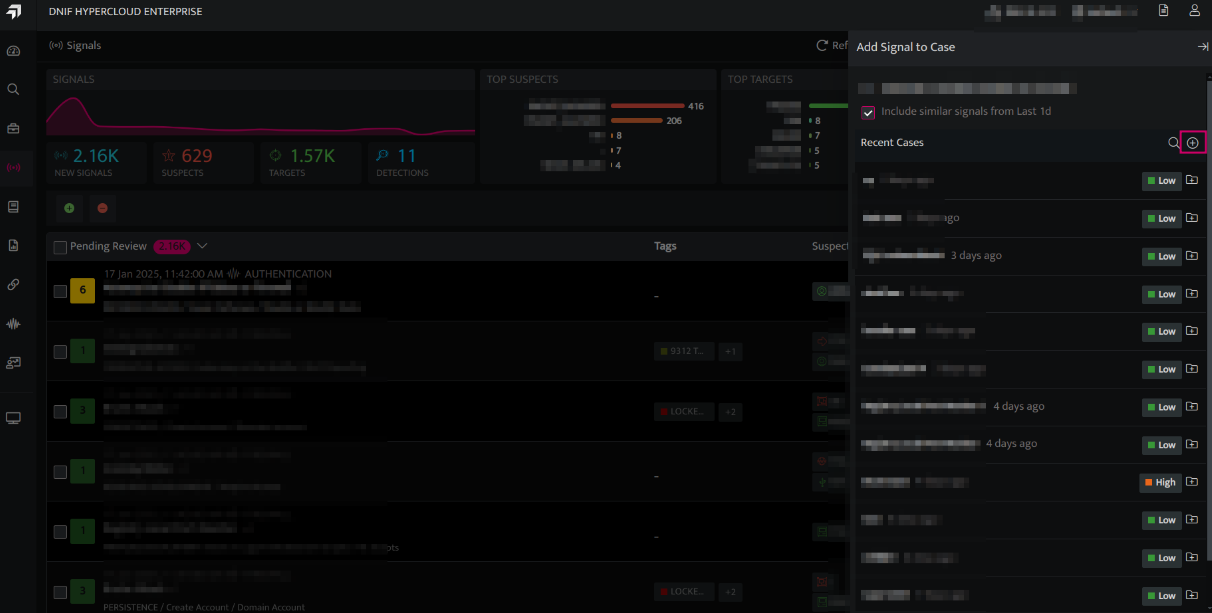
On the side panel that appears, Click the plus icon shown below to create a new Case.
-
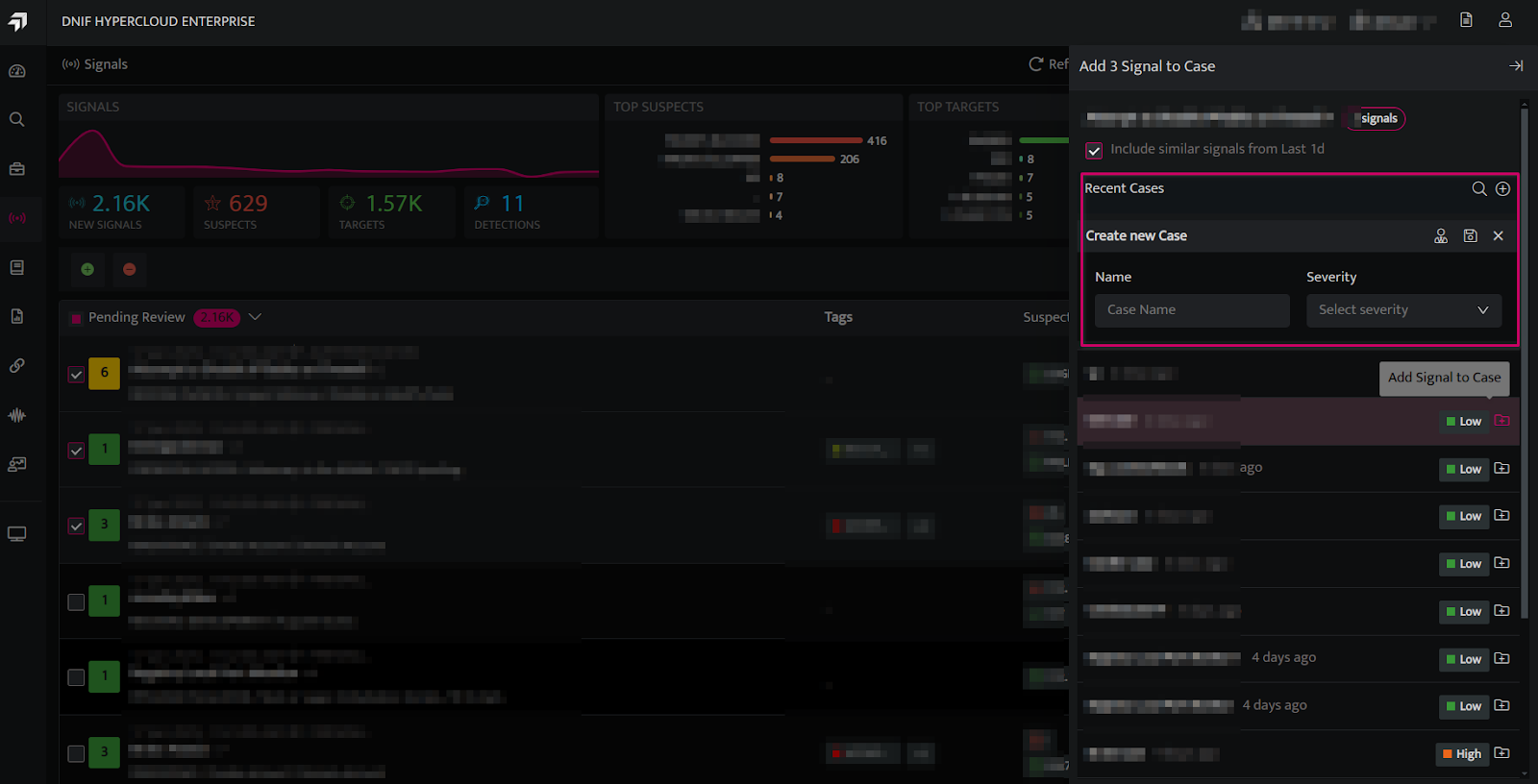
The following screen will be displayed.
-
Enter the following details:
| Fields | Description |
|---|---|
| Name | Enter a case name |
| Severity | Enter a severity level for the signal |
Handler  | Click and select the handler/user who will investigate the case from the drop-down (optional). |
Save  | Click to save the case |
- Enter the above details and click Save. The new case will be saved and listed.
Creating a case with multiple signals
-
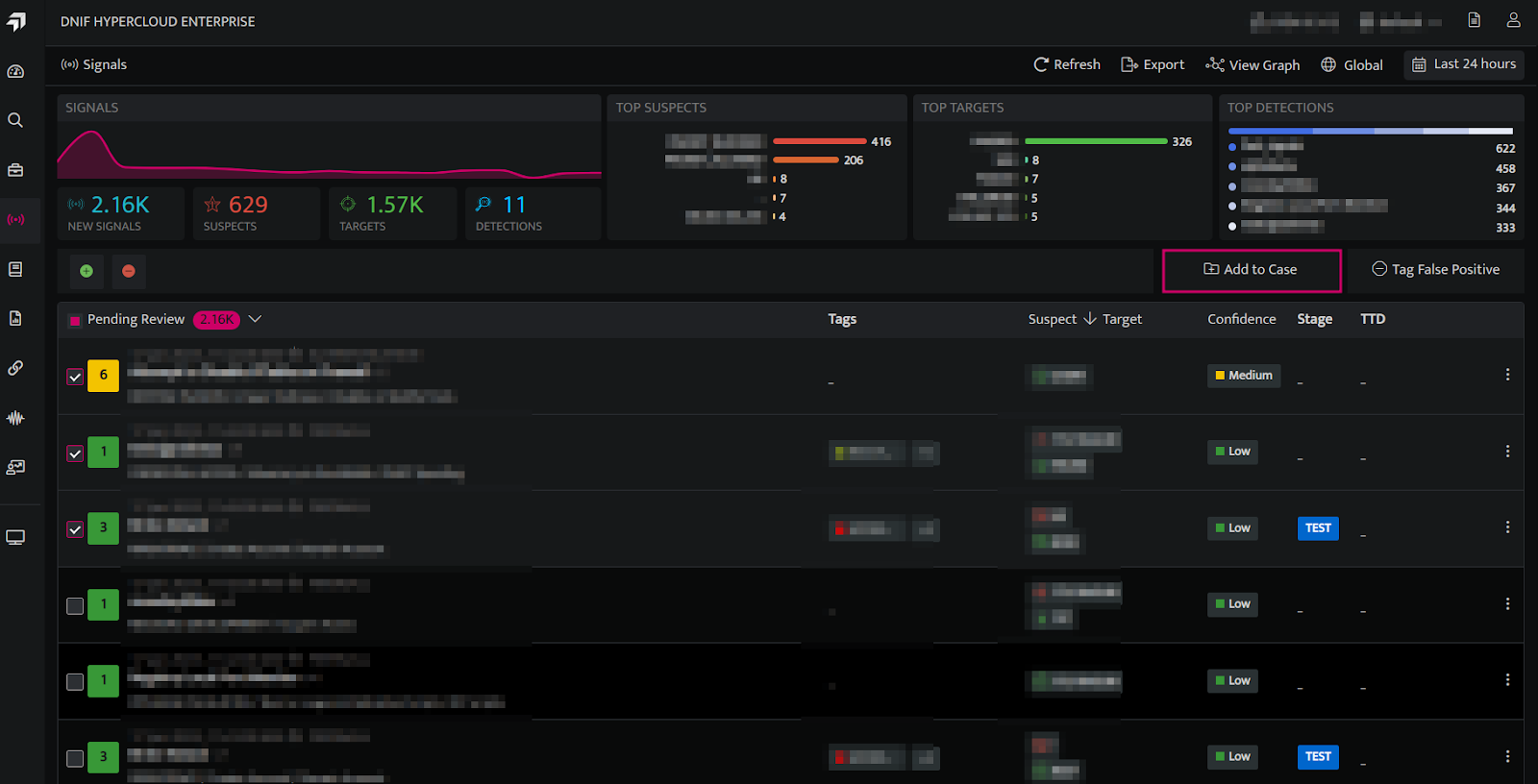
Users can select the checkboxes next to the desired Signals, then click Add to Case to create a new Case or add them to an existing Case.
-
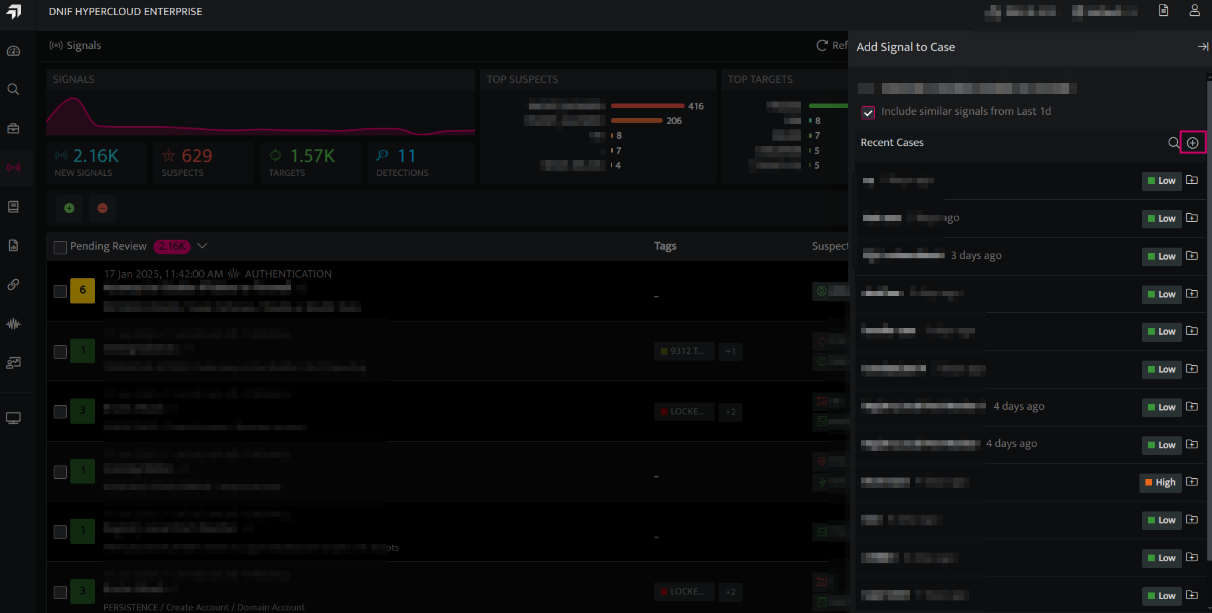
On the side panel that appears, click the plus icon to create a new Case.
-
The following screen will be displayed
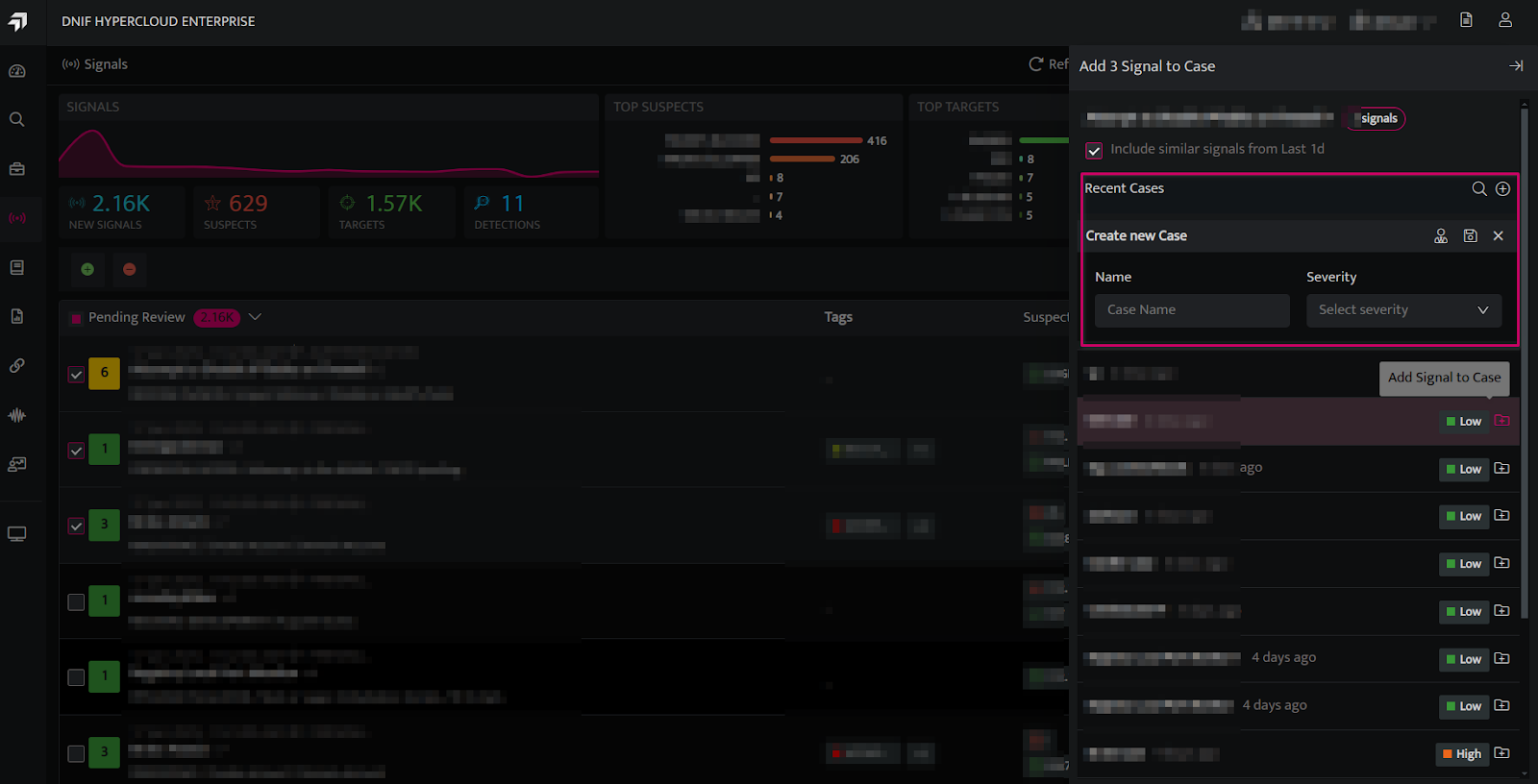
| Fields | Description |
|---|---|
| Name | Enter a case name |
| Severity | Enter a severity level for the signalHandler |
| Click and select the handler/user who will investigate the case from the drop-down (optional) |
| Save | Click to save the case |
- Enter the above details and click Save. The new case will be saved and listed.