Signal Data export
Users can now export Signal data from the Signal listing page to analyze it further.
Steps to export Signal data
-
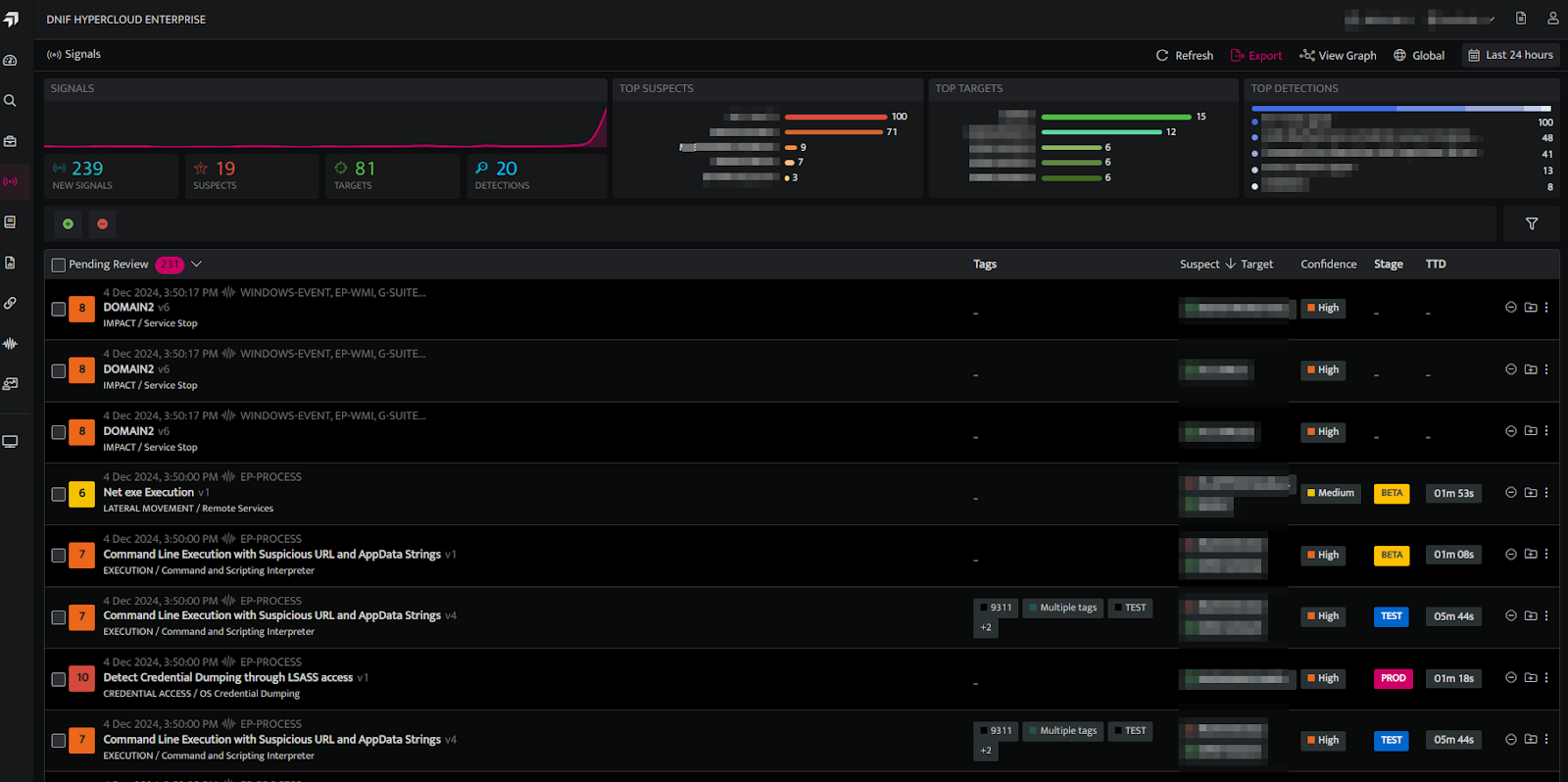
Click on the Signals icon on the left navigation bar of the Home screen to view all the signals generated.
-
Click the Export icon on the Signals page to export the Signal data currently visible on the page when it is loaded.
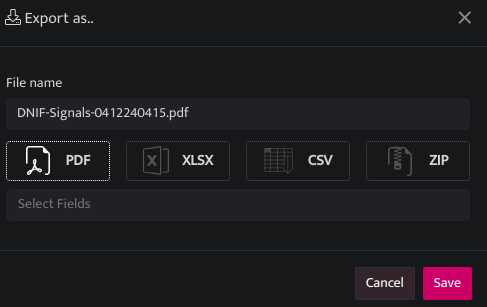
| Field | Description |
|---|---|
| File Name | Displays the name of the file |
| Export data in PDF format | |
| XLSX | Export data in Excel format |
| CSV | Export data in CSV format |
| ZIP | Export data in ZIP file |
| Select Fields | Select the fields that needs to be exported |
| Save | Select the fields that need to be exported |
- Use a filter to display only the required Signal data. Click on the Filter icon to Filter the Signal data by
-
Tactic
-
Priority
-
Technique
-
Confidence
-
Stream
-
Stage
-
Tag
-
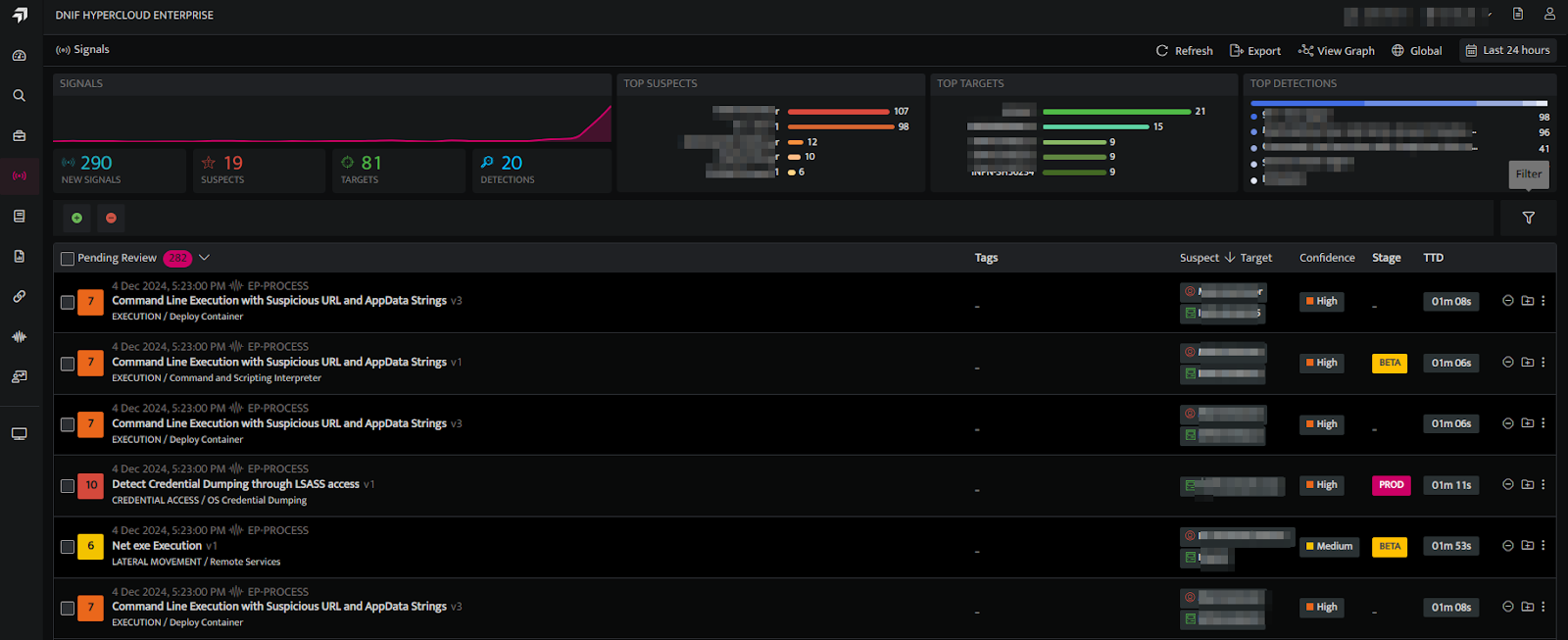
- Example: Filtering data based on Tactic - Impact, Priority - High, Technique - Service Stop, Confidence - High, Stream - Authentication.
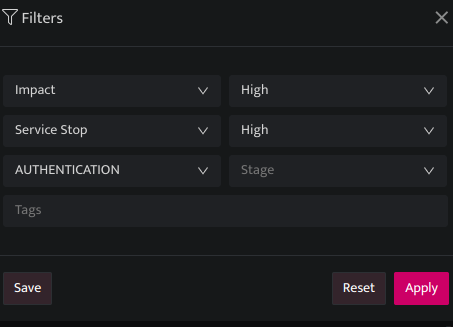
-
Use a time filter on the top right corner to filter data based on the specified time range.
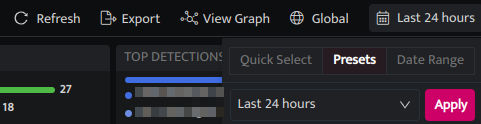
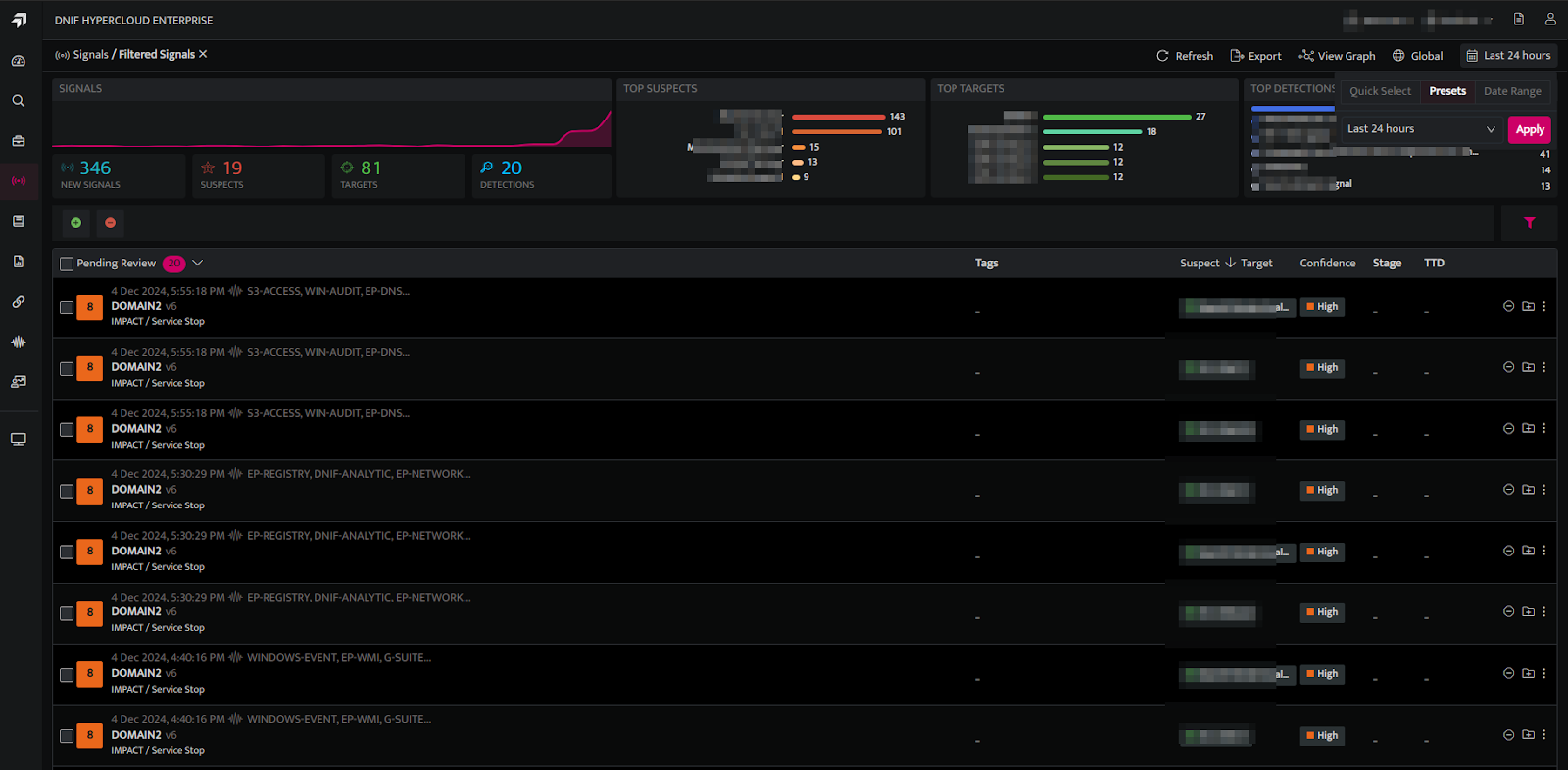
The Signal page retrieves and displays data based on the selected criteria.
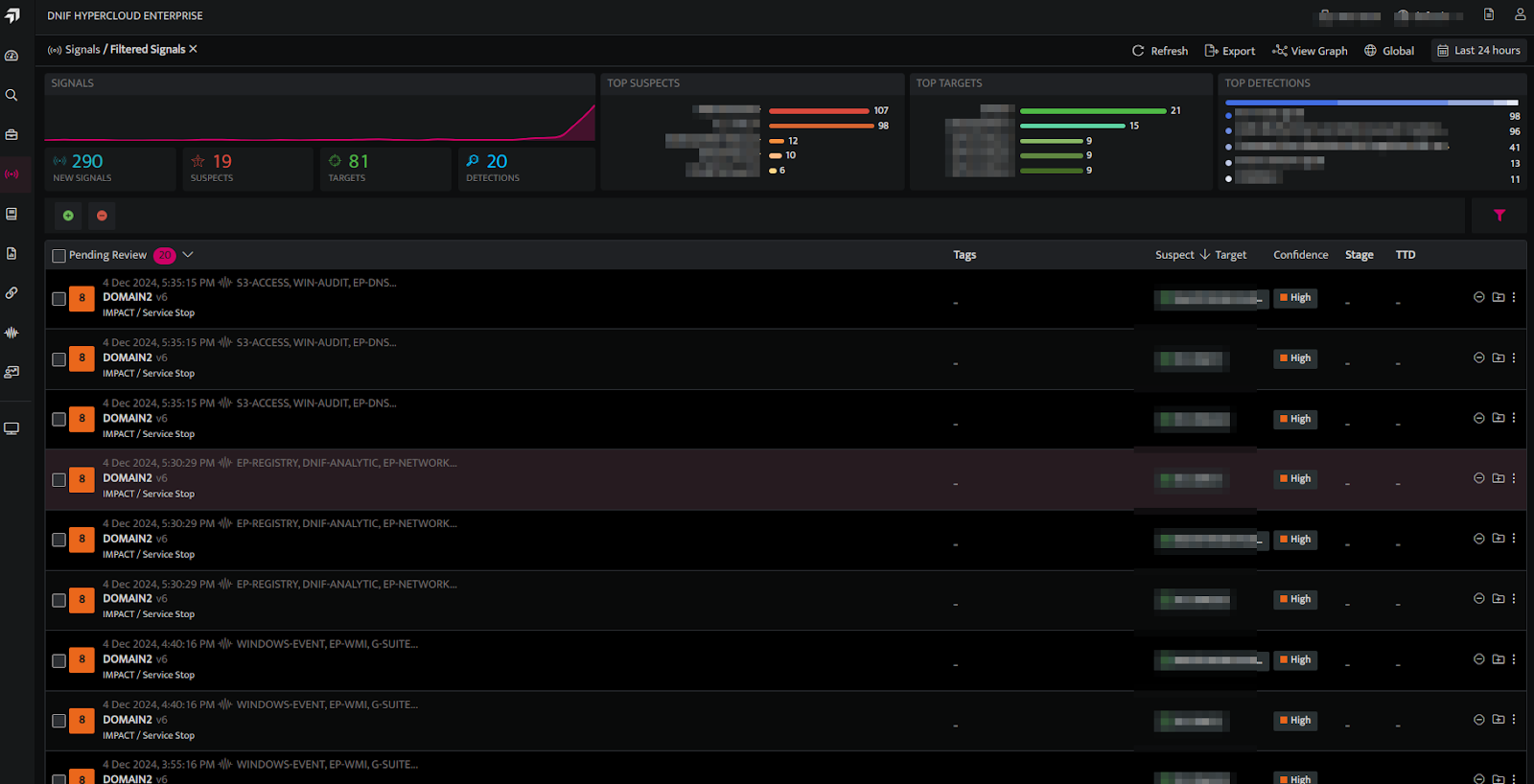
-
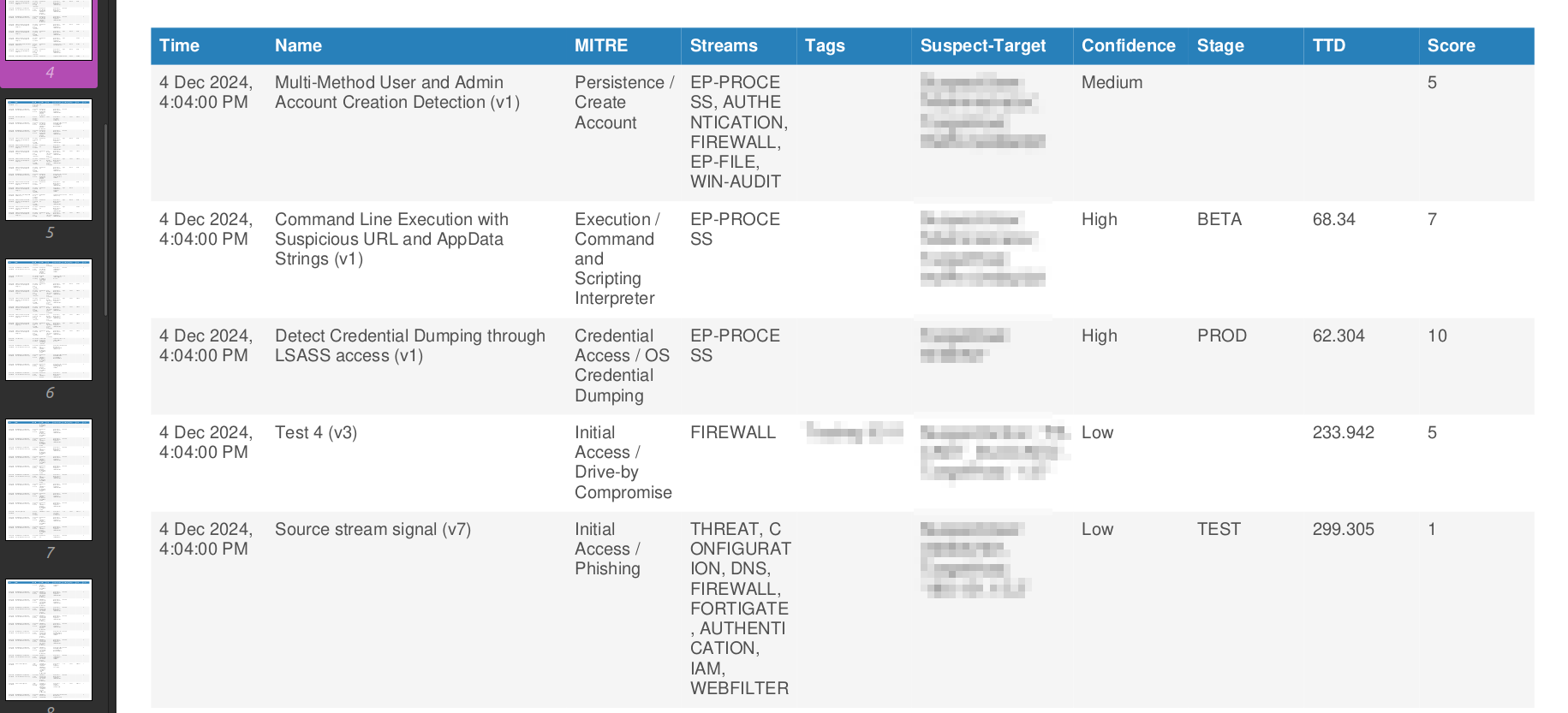
The Signal data will be downloaded in the selected format after saving.
Signal Data export