Create a Notification Block
Notification blocks allow you to send notifications to users via email, incorporating data received from the previous block into the notification.
The Notification block can send data as a consolidated email or as individual emails for each row in the data result set.
How to create a Notification Block?
-
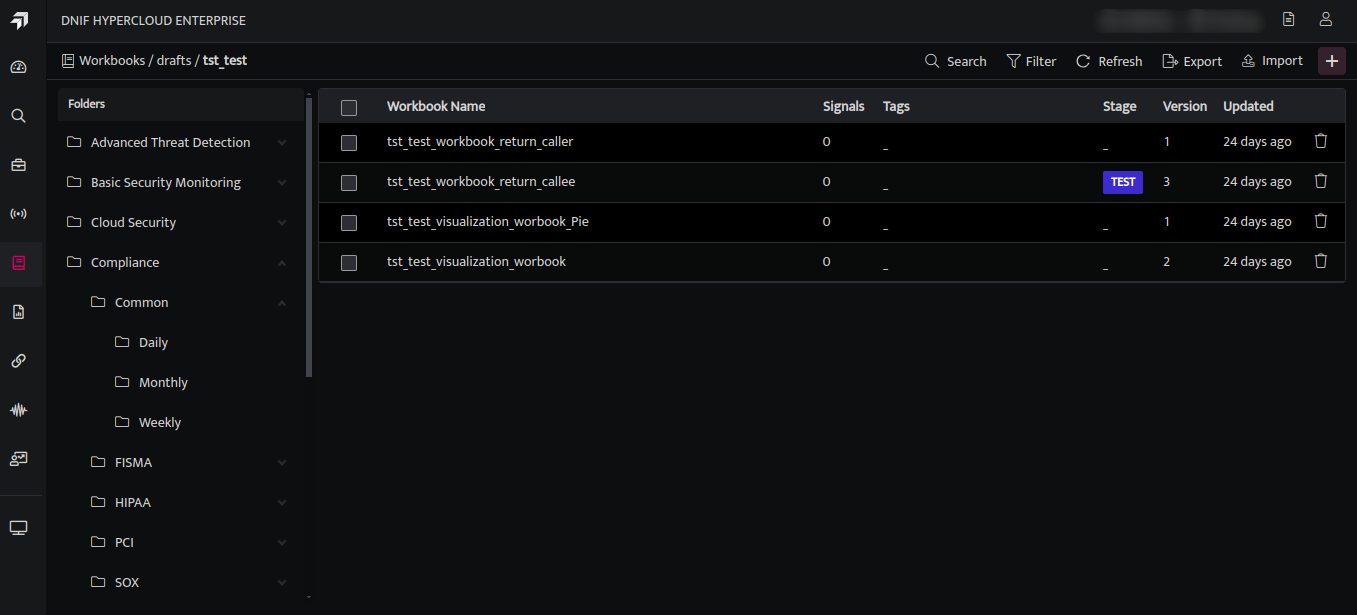
Hover on the Workbook icon on the left navigation bar, it will display the folder-wise view of the existing workbook in the tenant (previously known as cluster).
-
To create a new workbook, click the plus icon at the top right corner of the Workbook list page or click the find icon on the navigation bar.
-
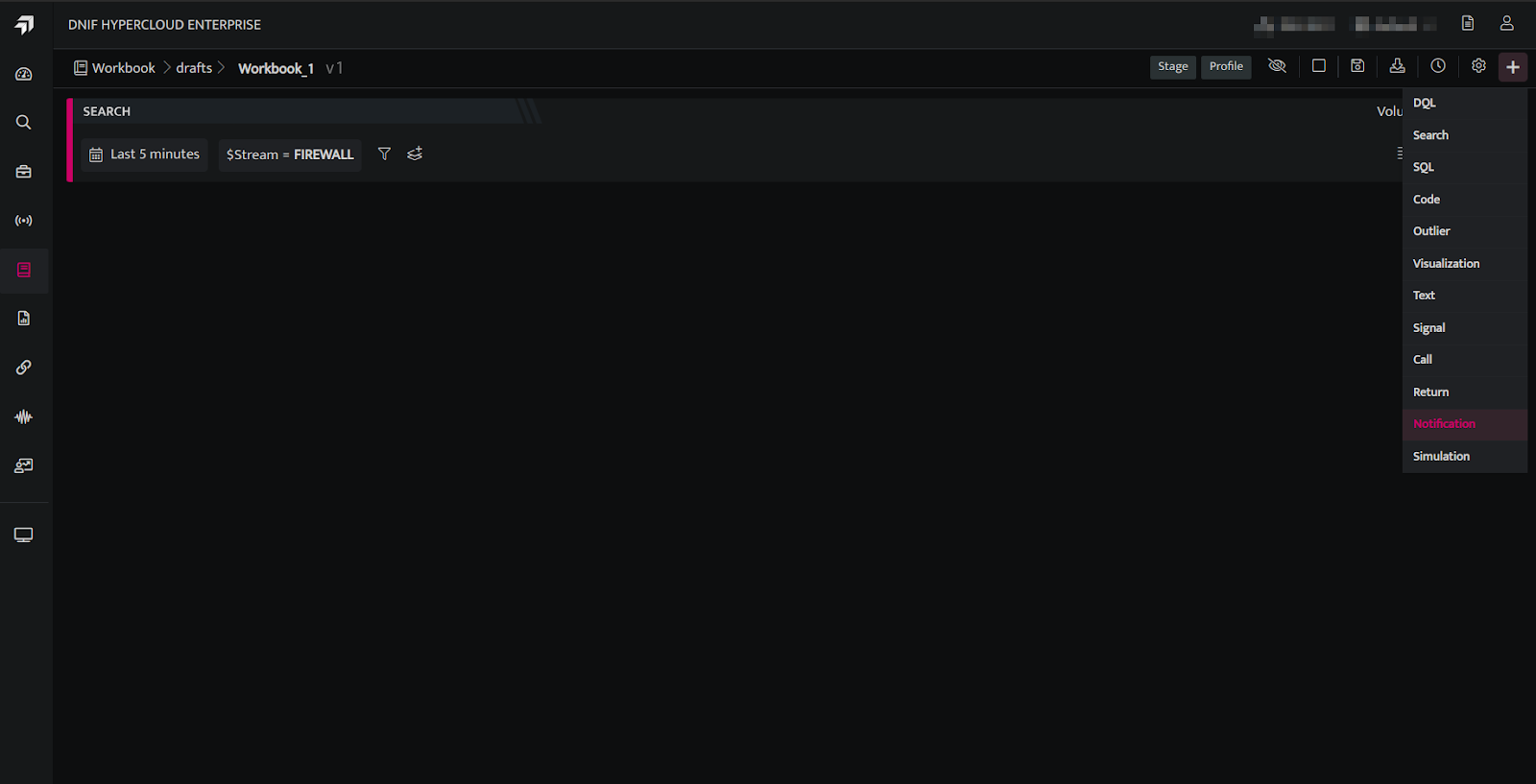
Click the plus icon on the workbook page and select Notification Block from the list, the following screen will be displayed
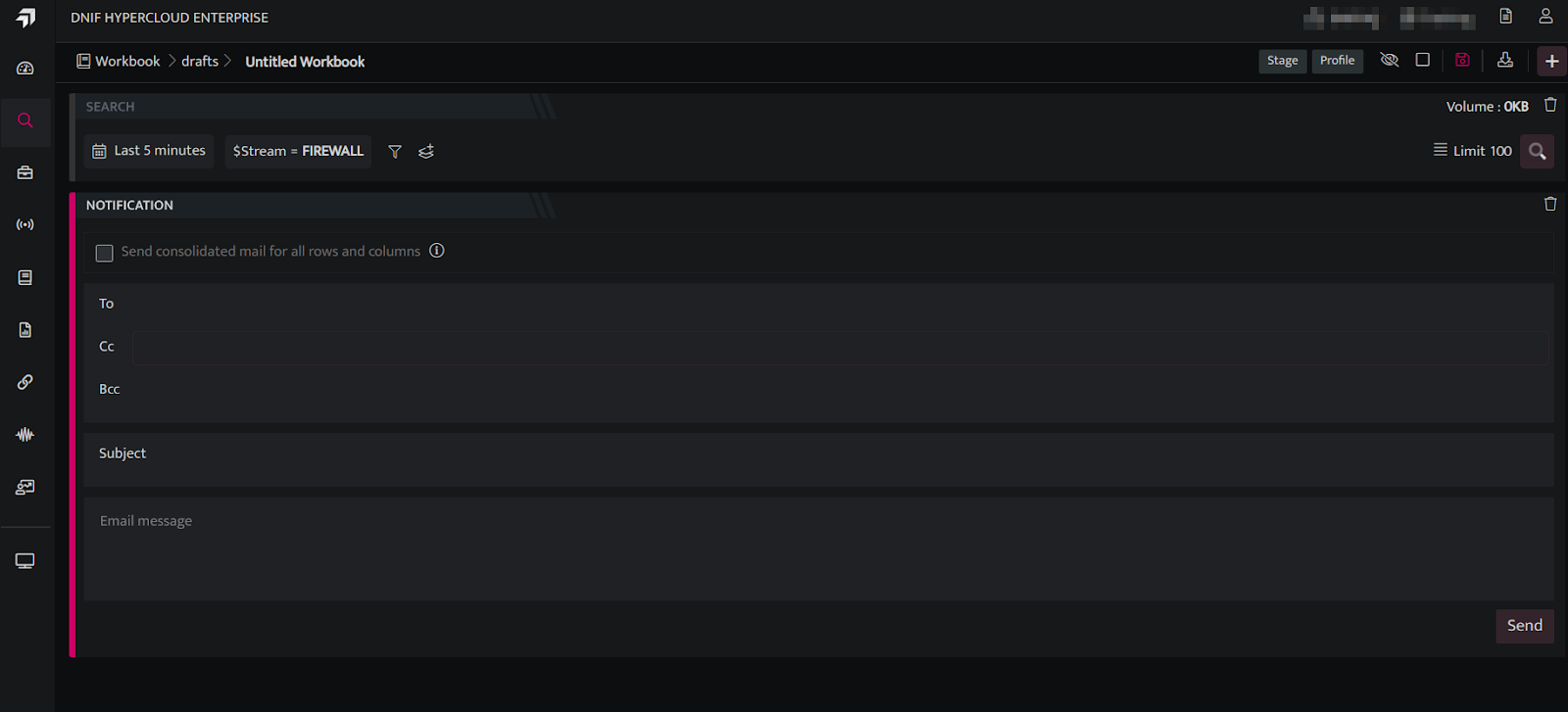
1.Notification in a consolidated email
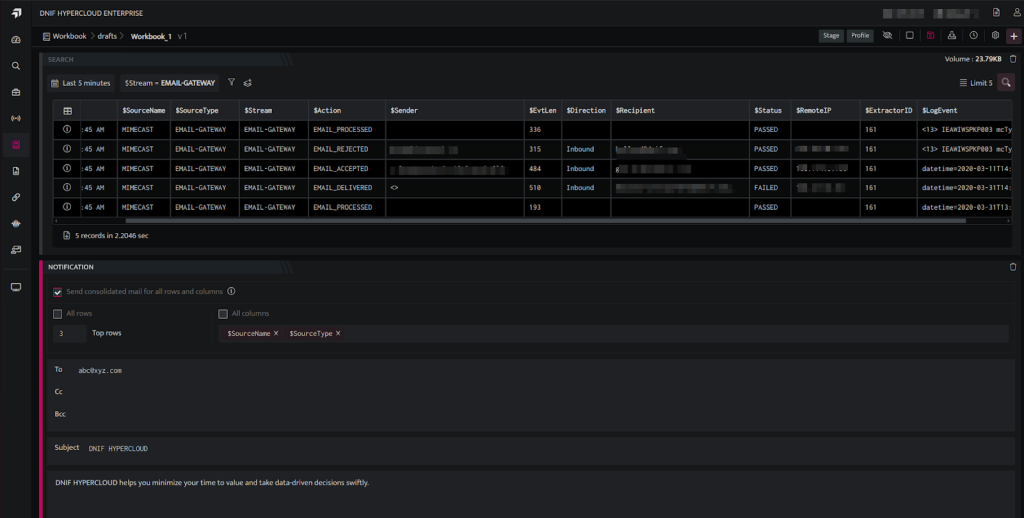
a. To send a consolidated email, select the checkbox Send consolidated mail for all rows and columns.
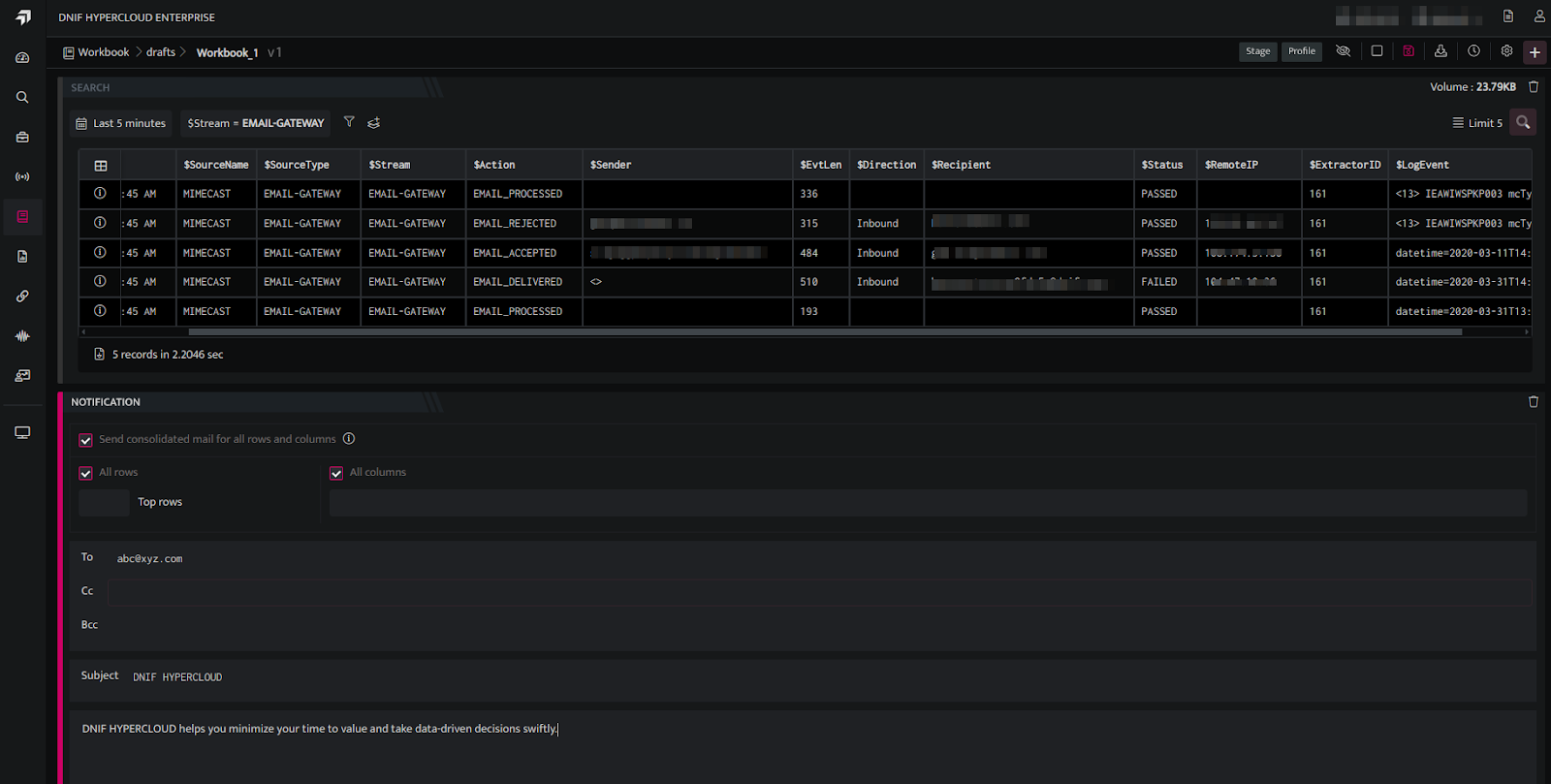
b. You can choose to send all rows or limit it to the Top N rows.
c. You can choose to send all columns or selected columns.
d. The selected result set is sent as an attachment in a single email.
e. This option is ideal for bulk reporting.
f. When using this option, the notification block supports only absolute email addresses as recipients.
| Field | Description |
|---|---|
| Send consolidated mail for all rows and columns | Check this to send a consolidated email |
| All rows | Check this to send all rows |
| All columns | Check this to send all columns |
| Top rows | This is enabled only when the checkbox All rows is unchecked. Enter the number of top rows you want to send. |
| Columns | This is enabled only when the checkbox All columns is unchecked. Select the columns you want to send. |
| To | Specify the main recipients of the email. This field accepts only absolute email addresses. E.g. abc@xyz.com |
| Cc | Specify any secondary recipients who should be included in the email. This field accepts only absolute email addresses. E.g. abc@xyz.com |
| Bcc | Specify any bcc recipients. This field accepts only absolute email addresses. E.g. abc@xyz.com |
| Subject | A title of the email's content. |
| Message | Email Message |
g. Example 1 - Sending All rows and All columns
h. Example 2 - Sending a specified number of rows and chosen columns.
2. Notification in individual emails for each row of the resultset
-
To send an individual email, uncheck the Send consolidated mail for all rows and columns.
-
This option is best suited for scenarios where each event requires immediate and focused attention.
-
When using this option, the notification block supports both absolute email addresses and email address fields from the result set as recipients.
| Field | Description |
|---|---|
| To | Specify the main recipients of the email. This field accepts both absolute email addresses. E.g. abc@xyz.com and email address fields from the resultset. E.g . $Email |
| Cc | Specify any secondary recipients who should be included in the email. This field accepts both absolute email addresses. E.g. abc@xyz.com and email address fields from the resultset. E.g . $Email |
| Bcc | Specify any bcc recipients. This field accepts both absolute email addresses. E.g. abc@xyz.com and email address fields from the resultset. E.g . $Email |
| Subject | A title of the email's content. This may also contain fields from the resultset. E.g. DNIF Signal raised: $SignalId |
| Message | Email Message. This may also contain fields from the resultset. |
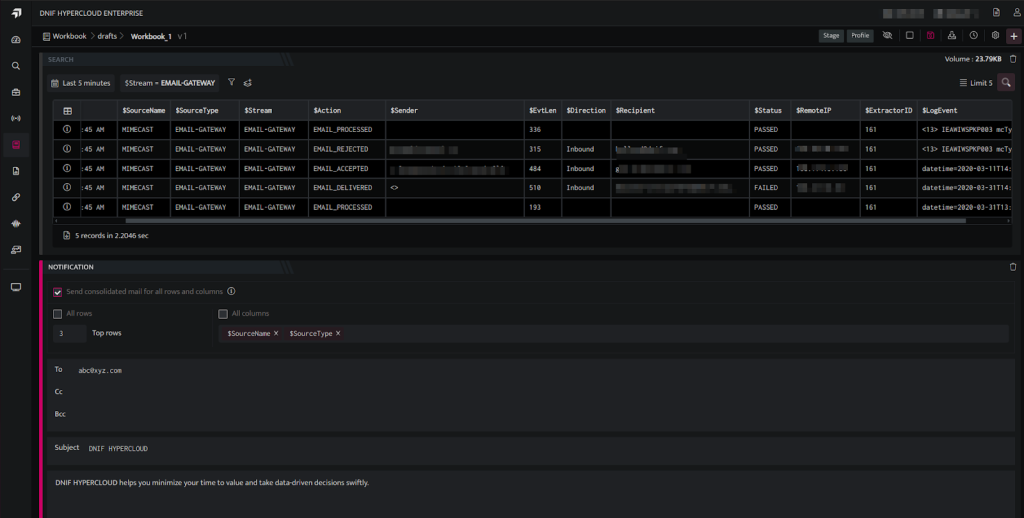
Note: The Notification Blocks can also be reused across workbooks using the call block functionality.