Configuring Automation
This article will help you to understand the steps on how to configure automation.
How to Configure Automation?
-
Navigate to the Automation Module:
- Hover on the System icon on the left navigation bar of the Home screen.
- From the options displayed, select Automation.
- The following screen will be displayed:
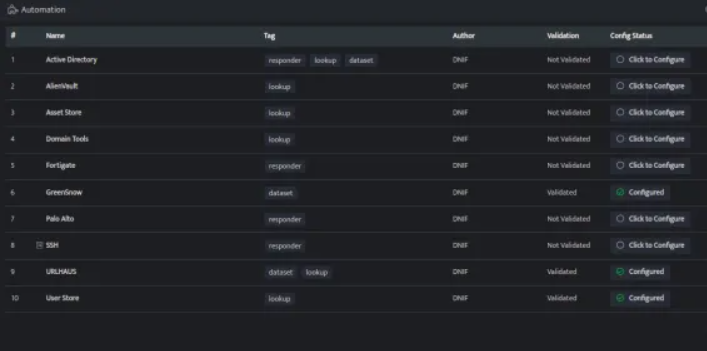
The Automation screen displays the following fields:
| Field Name | Description |
|---|---|
| Name | Displays the name of the automation. |
| Tag | Displays the type of automation. |
| Author | Displays the name of the user who created the automation. |
| Validation | Displays whether the automation is successfully validated. |
| Config Status | Displays whether the automation is configured with DNIF or not. |
| Status | Toggle button to enable or disable the automation. |
- If the automation is added but not configured, it will be displayed as Click to Configure under Config Status.

- Click to configure to configure the automation, a form will be displayed, enter the required details to configure.
- The form will be different for different automations.
- Enter the required information and click Save. The details will be displayed in grid format.
-
The details will be automatically validated with DNIF and if the details are correct, the Validation status will be displayed as Validated and Config Status will be displayed as CONFIGURED.
-
Click the Status toggle button to enable or disable a particular automation once it is successfully updated.